You recorded it in 2 minutes. Why does fixing it take an hour?
Sound clear, get to the point, and send it anywhere. Your voice never crackles, every pause disappears without clipping a word, and the file fits in WhatsApp. Most people get there one job at a time, in four different apps. FlowCast does it in one tap, on your phone, and gives you one finished video.
This page is also the tutorial. Read it once and you'll know the whole app. Start the story ↓
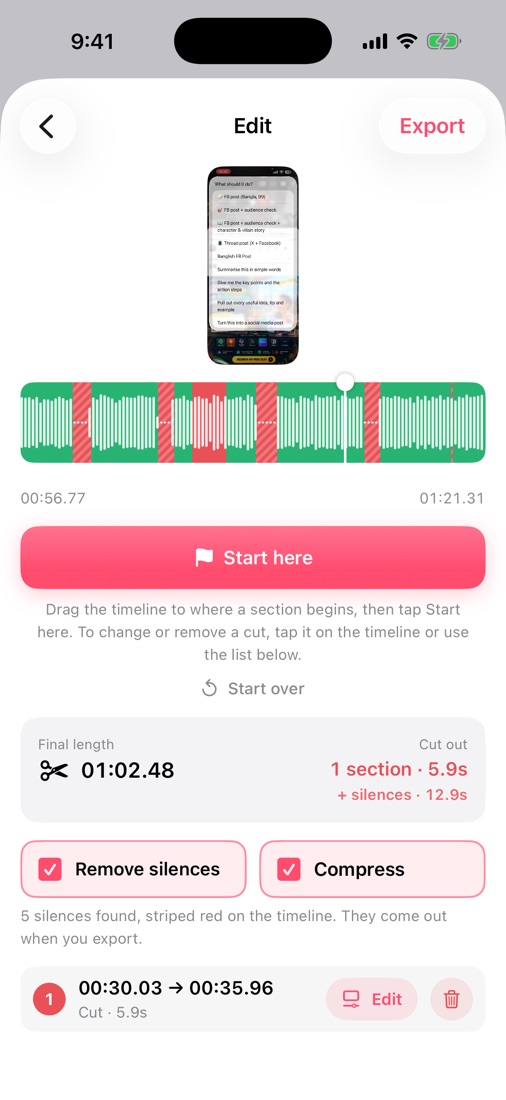
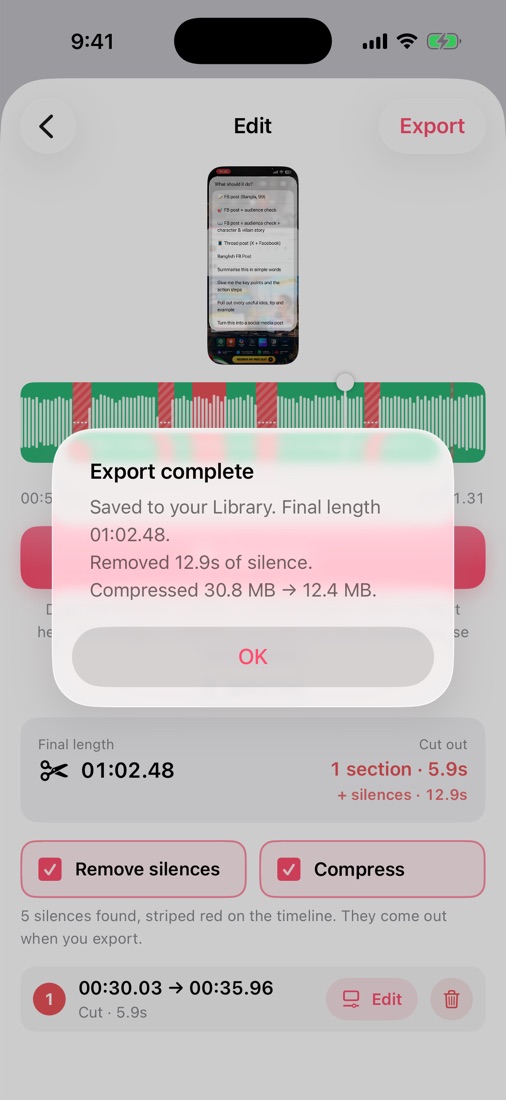
One cut, every silence marked, ready to export
1Record
It starts with a recording you can't afford to lose.
You want to show someone how to do something on your phone: a client, your team, your followers. So you hit record and talk them through it. Five good minutes, first take.
Here's the catch nobody warns you about: the iPhone's own recorder only saves your video at the very last moment. If that final step hiccups, five minutes of work vanish without a word. And unless you remember to tap a tiny microphone icon first, it records no voice at all.
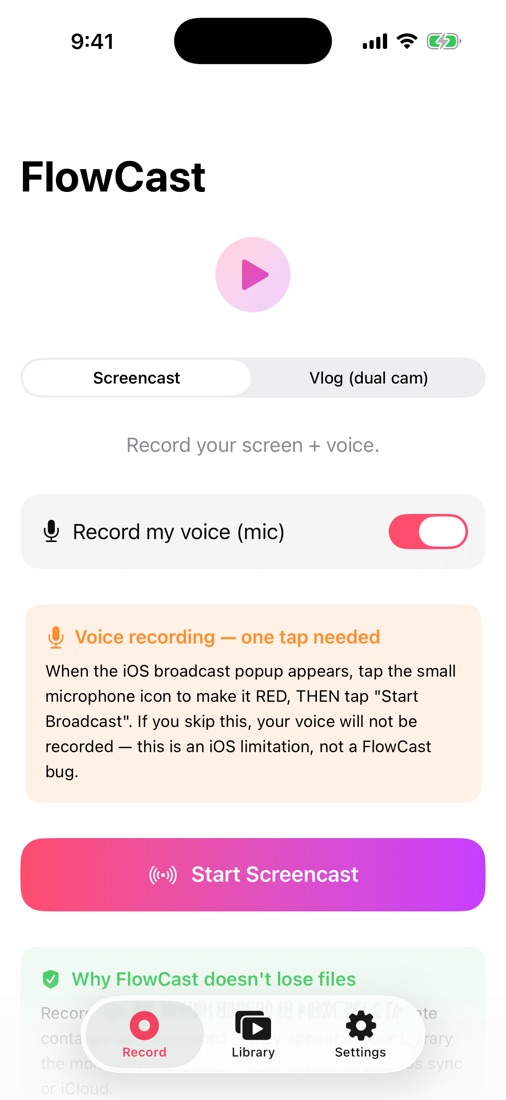
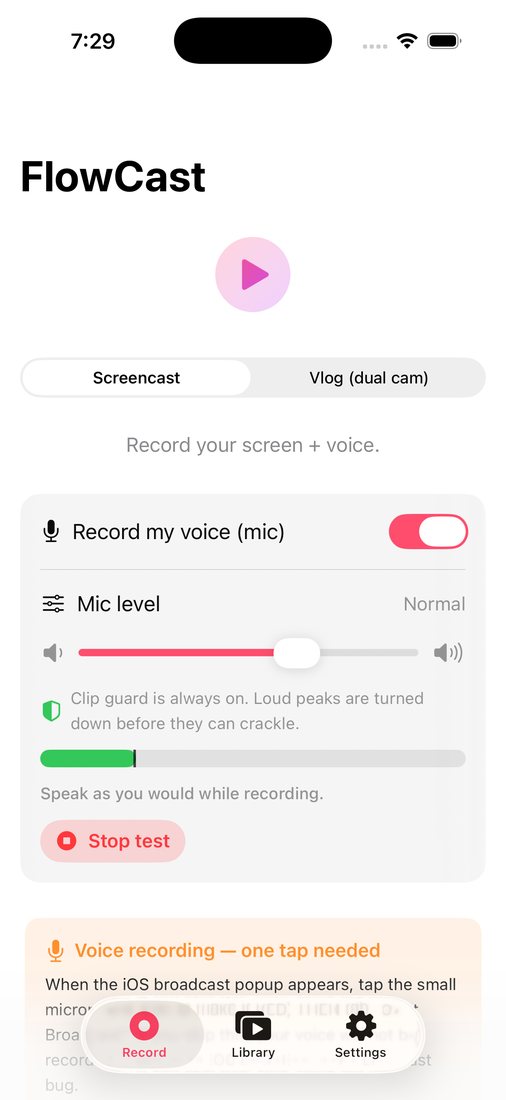
FlowCast was built around that fear. Every recording goes into its own Library the instant you stop, so nothing hangs on a last-second save. The Record screen reminds you about the microphone each time, and it captures your voice and the phone's own sound together.
Try it now
Say a line in your normal voice and tap Test my level. Keep the bar out of the red.
Tap Start Screencast.
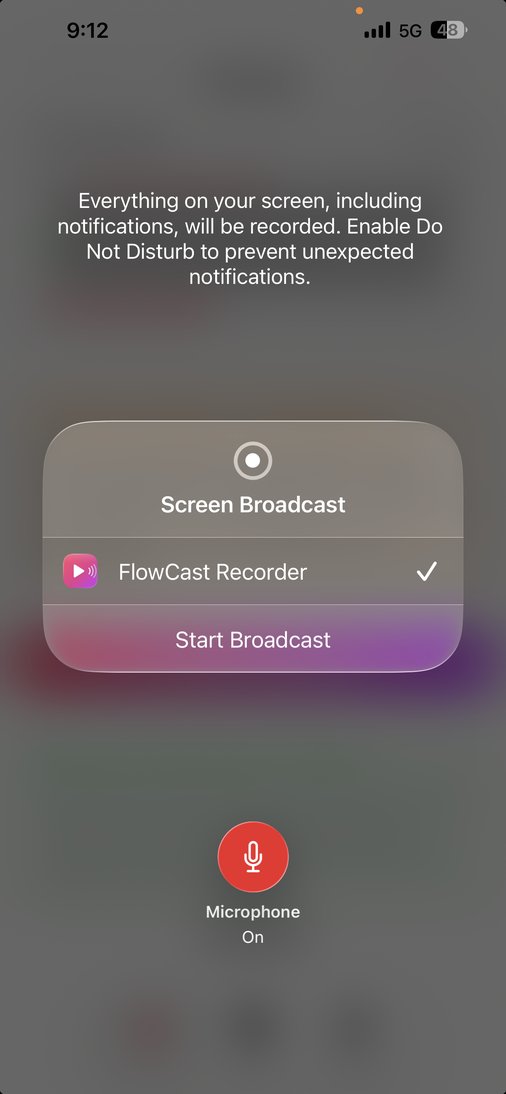
In Apple's pop-up, tap the microphone so it turns red, then tap Start Broadcast.
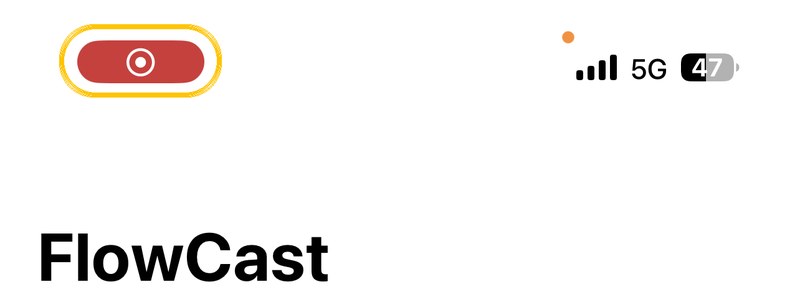
Do your thing. Stop from the red pill at the top of the screen. Your video is already in the Library.
Microphone red and On, then Start BroadcastDone? Tap the red pill at the top left to stop. Your video is already waiting in the Library.
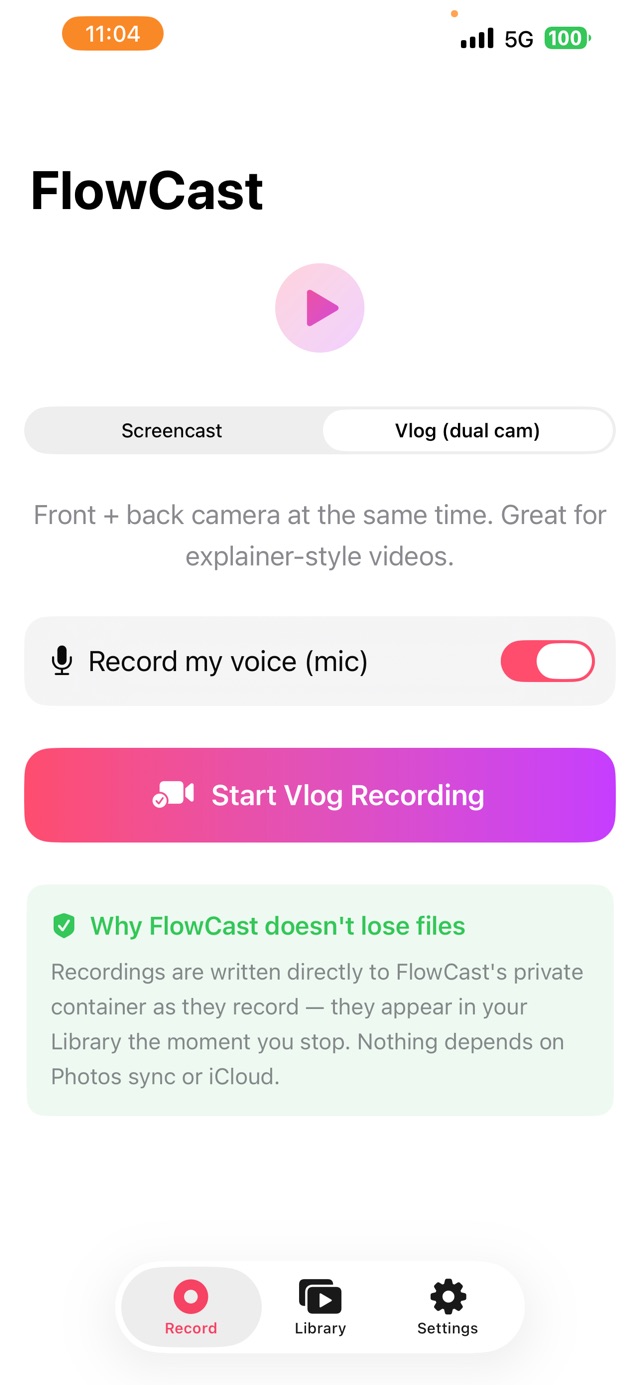
Want your face in it too? Switch to Vlog (dual cam). It films with the front and back cameras at once, and you can drag, pinch, round off and frame your face bubble live while you record.
There's one more way a good take goes wrong, and it happens at the best moment: you get excited. Your voice rises on the point that matters most, the recording overloads, and playback crackles right there.
Your voice stays clean, however loud you get. On iPhone, FlowCast's clip guard is always on (Android is next). It turns down only the loudest peaks, just before they'd distort, and leaves the rest of your voice exactly as it was. Set the Mic level slider once, then tap Test my level: a live bar goes green, yellow, red as you speak, so you know it's right before you hit record. After each recording it tells you whether the guard had to step in.
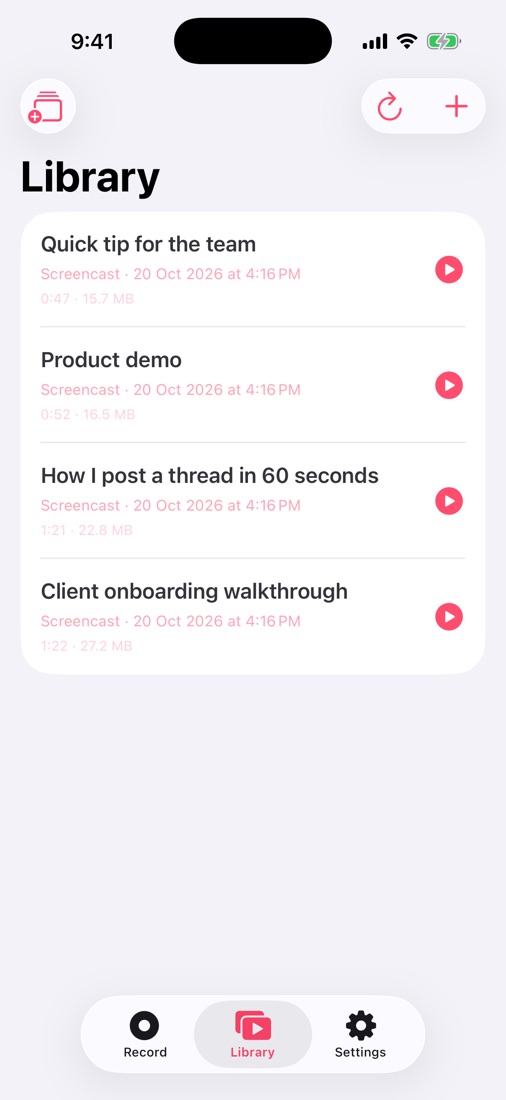
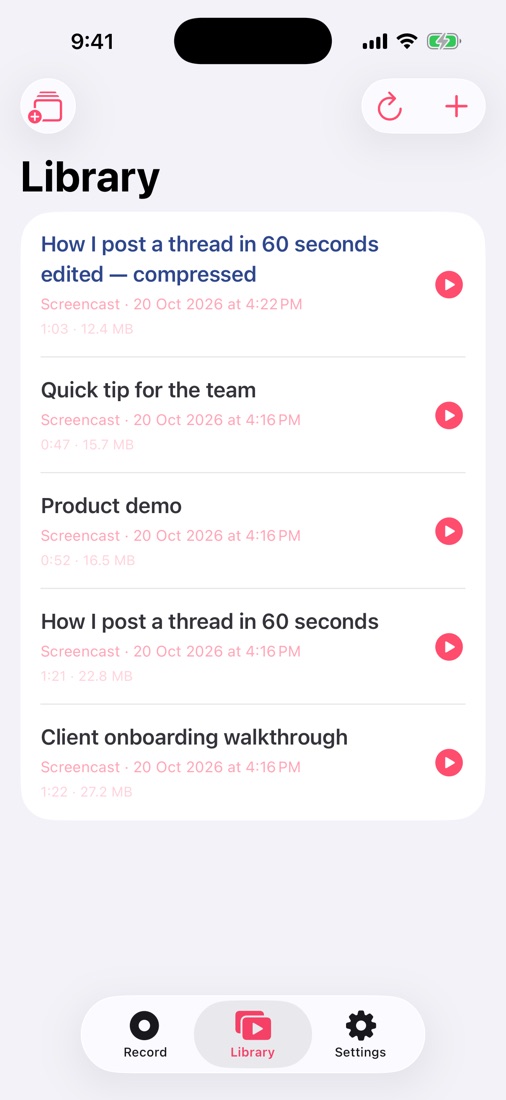
Every recording lands in the Library with its length and size. Videos you already have count too: tap + to bring one in from Photos or Files, or choose Open in FlowCast from any app.
A list of "Screencast, 20 Oct, 2:00 PM" tells you nothing. Renaming each one means pecking at a phone keyboard, so most people simply never do.
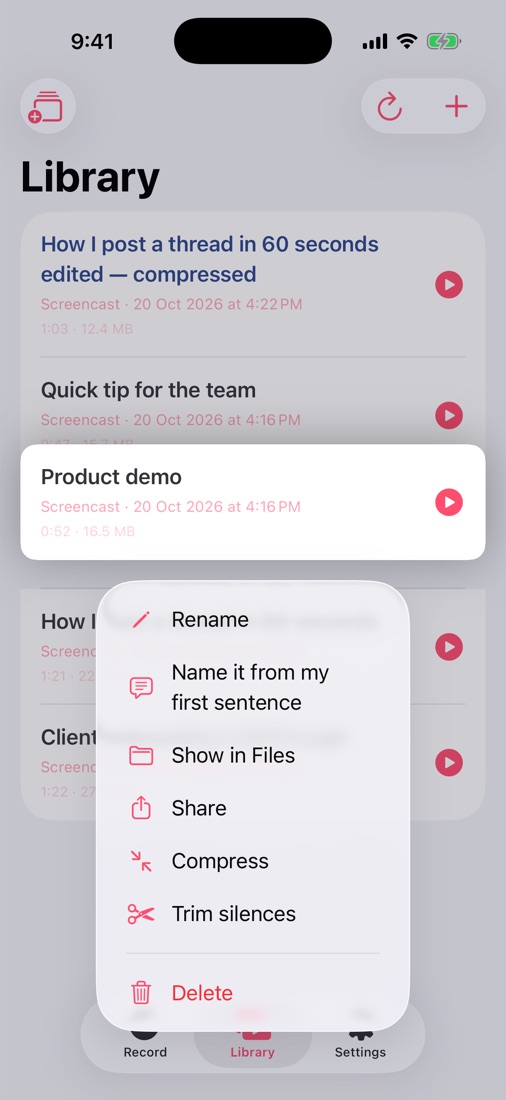
So let FlowCast do the typing. Press and hold a video and tap Name it from my first sentence: it listens to how you opened the video and names it in your own words, right on the phone. Prefer your own title? Rename is one tap away.
Everything is one long-press away
Rename or Name it from my first sentence
Show in Files and Share to any app
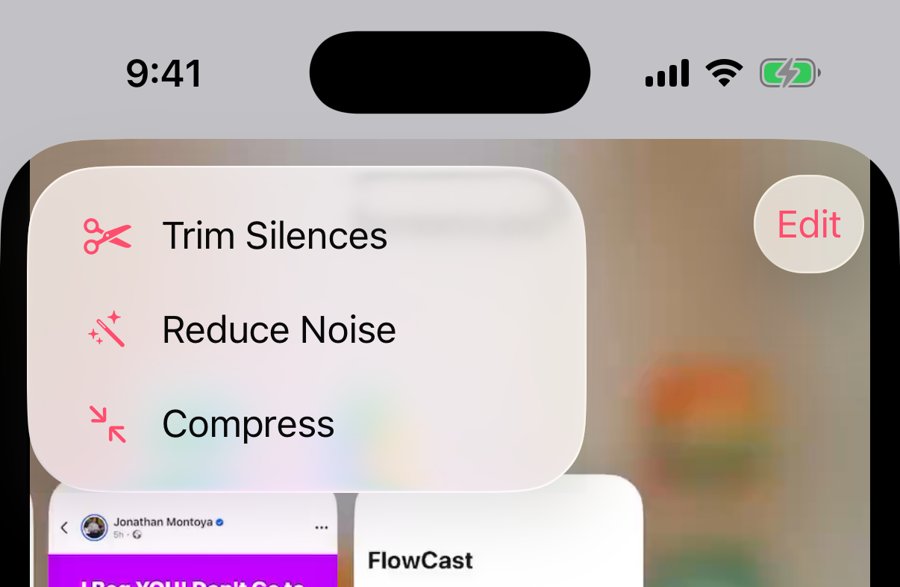
Compress and Trim silences (both explained below)
Delete. It always asks first, so a stray swipe can't lose a video.
Every first take has a bit you'd rather nobody saw.
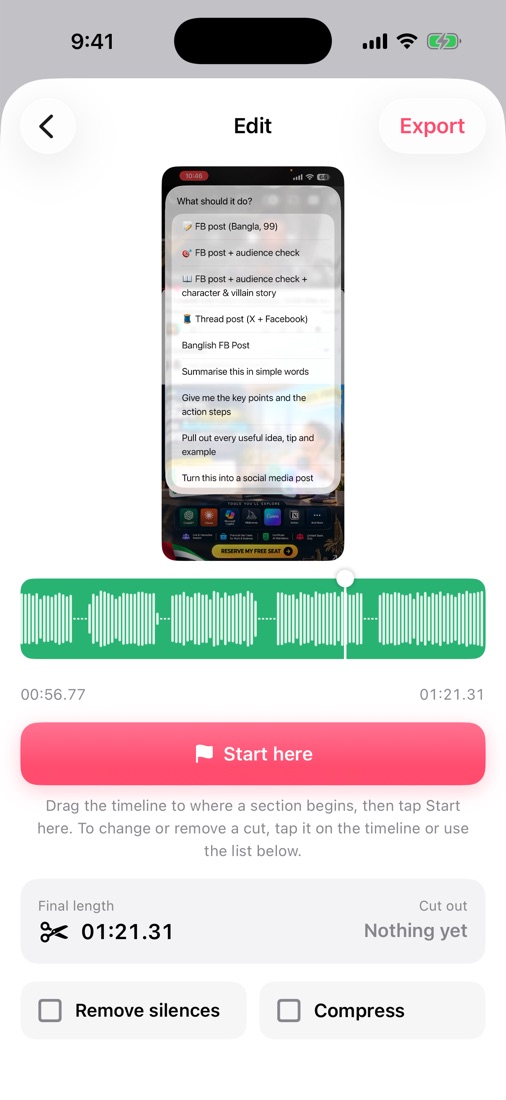
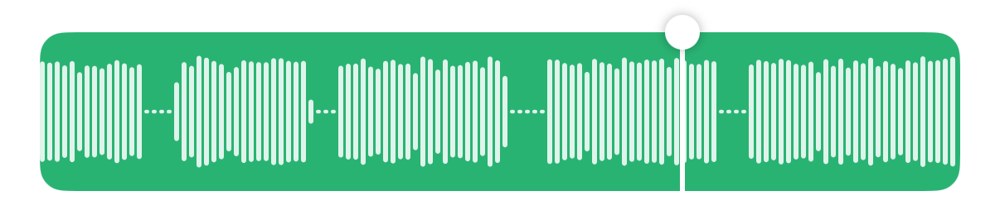
Open any video and tap Edit. The big bar is your whole video. Green is what stays. The white lines are your voice, so you can see where you talked and where you didn't.
The trouble is, most phone editors are made for people who edit for a living: tracks, layers, handles too small for a thumb. You only wanted one bad bit gone.
That's why FlowCast shows you just the step you're on. Mark where the slip starts, mark where it ends, and it turns red. That really is the whole skill.
Three steps
Drag along the bar to where the mistake starts. Tap Start here.
Drag to where it ends. Tap Cut this part. It turns red.
Got it slightly wrong? Tap the red part and drag its white handles. The video jumps to the exact frame as you drag.
Changed your mind? Each cut has its own row in the list, with Edit and a bin. Start over clears them all.
Nobody records without pausing. You stop to think, you scroll, you wait for a page to load. In a 5-minute video that easily adds up to a minute of nothing. Viewers feel it, and they swipe away.
Snipping every pause by hand takes longer than the recording did. People buy desktop tools like TimeBolt for this one chore alone.
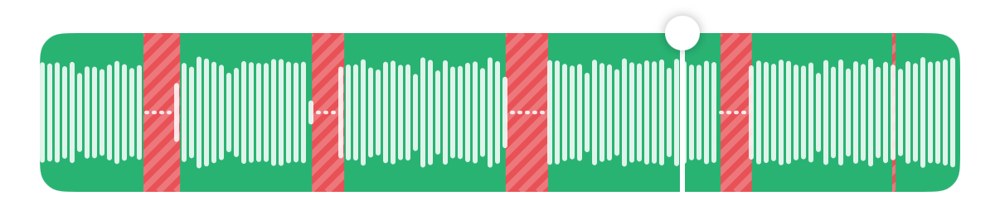
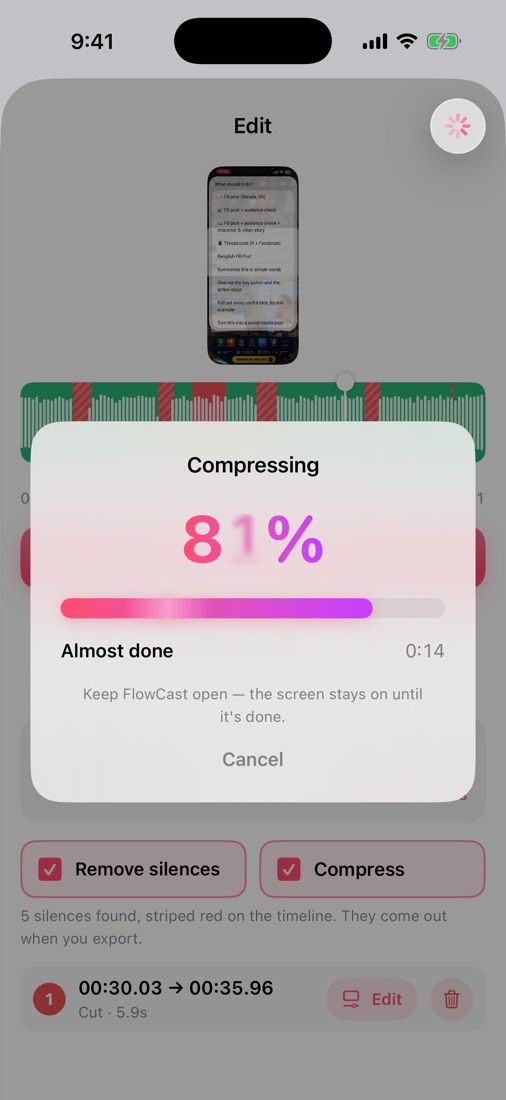
In FlowCast it's a tick box. Check Remove silences and every pause lights up red on the bar instantly, before you've exported a thing. You see exactly what will go, and the final length shrinks in front of you.
Every word still ends where you ended it. The last sound of a word fades out slowly, a soft "s" or a breath, and cheap silence cutters chop it off, so you sound clipped and rushed. FlowCast leaves extra room after each word and a touch before the next, then fades the sound across every join so there's never a click. Short pauses between words stay, so you still sound natural. And if the phone was playing sound while you were quiet, that part stays too.
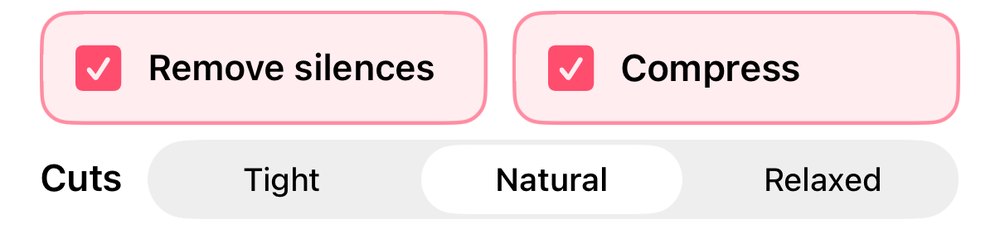
Like your videos snappier, or more relaxed? Under the tick box, Cuts lets you pick Tight, Natural or Relaxed, and the red stripes redraw as you switch.
See it for yourself
In the editor, tick Remove silences.
Watch the striped red parts appear. That's the silence.
Check Final length: it already shows the new, shorter time.
Too snappy or too slow? Switch Cuts between Tight, Natural and Relaxed.
People will forgive a shaky picture long before they forgive bad sound. A constant hiss under your voice tells them it's an amateur video, before you've said anything useful.
Fixing that usually means uploading your video to some website, or learning a whole audio app.
FlowCast keeps it on your phone. Open the video, tap the waveform button at the top left and choose Reduce Noise. It cleans your voice only and leaves the phone's own sound alone, so music and app sounds come through untouched. Nothing is uploaded.
How to clean it
Tap a video in the Library to play it.
Tap the waveform button, top left.
Choose Reduce Noise. A cleaned copy appears next to your original.
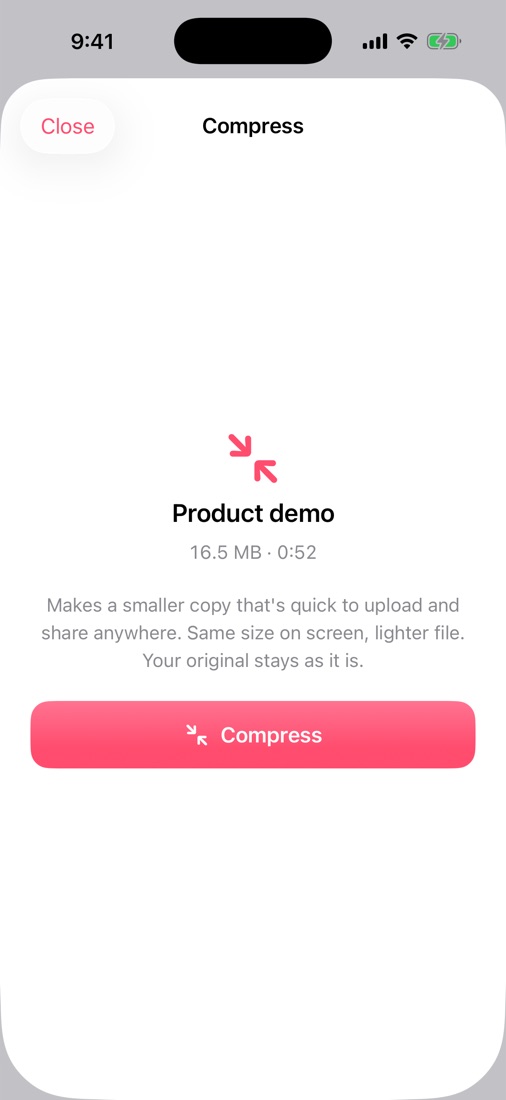
Phones record at a very high quality, far more than a chat app or a phone screen needs. One minute can easily be 20 to 30 MB. That's too big for an email, slow in WhatsApp, and painful on a client's mobile data.
Compression apps don't make it easy, either. They bury you in codecs, bitrates and presets, and one wrong pick leaves your video looking like it was filmed through frosted glass.
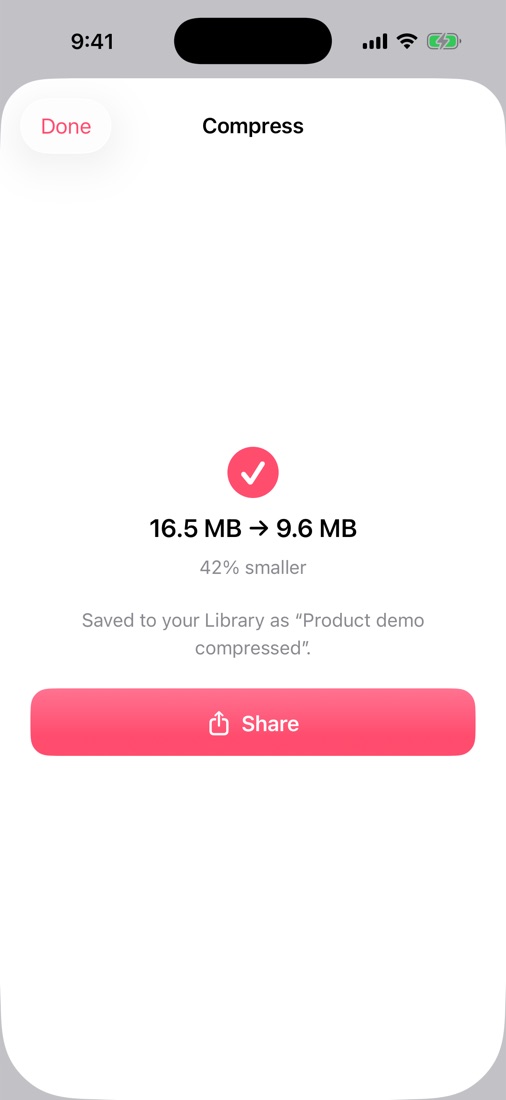
FlowCast's Compress has no settings at all. It keeps your picture exactly the same size and saves it in the format every phone, laptop and chat app plays. If it can't make the file smaller without spoiling it, it won't hand you a worse copy; it simply tells you.
This is how most people edit: cut the mistakes, export. Open that file, remove the silences, export again. Open that one, compress it, export a third time. Then go back and delete the in-between copies. It's tedious, and it's easy to send the wrong one.
Each extra export is more waiting, more storage gone, and one more chance to send the wrong file.
FlowCast folds it all into a single tap. Make your cuts, tick Remove silences and Compress, and tap Export. One progress bar shows how long is left, and what comes out is just the finished video. Your original stays untouched, and the app remembers your ticks for next time.
An intro, the walkthrough, a quick thank-you at the end. Or a clip from Photos you want to stick on the front. They're separate videos, but your viewer should get one.
Stitching clips together on a phone normally means a full editing app, and a tall video beside a wide one gets cropped or squashed.
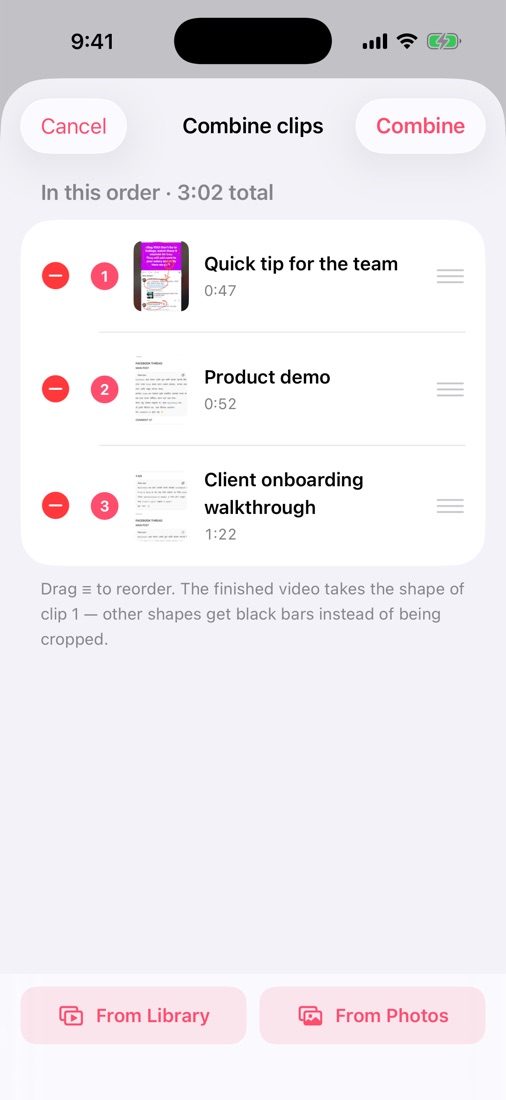
Here, it's a button. Tap Combine at the top left of the Library, add clips from your Library or Photos, drag them into order, and you're done. Clips of different shapes get neat black bars instead of being cropped. Then polish the result like any other video: cuts, silences, noise and compression all work on it.
Put it together
In the Library, tap the stack icon at the top left.
From Library or From Photos, pick your clips.
Drag the ≡ handles into order and tap Combine.
Videos that came from Photos go back into Photos when they're done, right next to your original.
Free on both. No account, no sign-in, nothing uploaded.
iPhone
Tap App Store below, then Get.
Open FlowCast and tap Start Screencast.
In Apple's pop-up, turn the microphone on (red) before you start.
Android
Tap Android below on your phone. FlowCast.apk downloads.
Open it. If Android asks, tap Settings, turn on Allow from this source, then go back.
Tap Install, then Open. When you record, allow screen and microphone access.
Is it really free?
Yes. No subscription, no watermark, no account.
Do my videos get uploaded anywhere?
No. Recording, editing, silence removal, noise cleanup, naming and compression all happen on your phone. Your videos only leave it when you share them.
Will Remove silences cut me off mid-word?
No. It only removes pauses of half a second or longer, keeps extra room after each word so endings aren't clipped, and fades every join so nothing clicks. Pick Tight, Natural or Relaxed to set how close it cuts, and you see every silence in red before you export.
My voice crackles when I talk loudly. Can FlowCast fix that?
On iPhone, yes, from your next recording on (it's coming to Android next). The clip guard is always on and turns loud peaks down before they distort, and the Mic level slider and Test my level meter let you set your level first. It can't repair a recording that already crackled, and if the phone is right against your mouth the microphone itself can overload. The meter warns you when that happens.
Does it change my original video?
Never. Every edit, cleanup and compression is saved as a new copy next to the original.
Why isn't the Android app in the Play Store?
We give it to you straight from here, so you always get the newest version. It's the same FlowCast, made by ZPresso LLC.
 FlowCast by ZPresso
Get it free
FlowCast by ZPresso
Get it free